

Storing electronic transaction data
Storing invoices and receipts received electronically, searching them by transaction date, amount, and counterparty, keeping a correction and deletion history, and responding to a data download request with an index CSV and a zip of originals.
This page covers transaction information exchanged electronically — an invoice that arrived as a mail attachment, a receipt issued by an online store, and so on. Storing this data has been mandatory for every business in Japan since January 2024. See the overview for what is common to all categories.
3.1 Scope and method
Data in scope
Invoices, receipts, purchase orders, and contracts received or sent electronically. Documents received on paper belong to scanner storage.
Method
niyase satisfies the authenticity requirement as a system that keeps a history of corrections and deletions. Timestamps are not used. See 1.2.
What you must also do: Even with this system, you must adopt internal rules that in principle prohibit correcting or deleting the electronic transaction data you receive. A template following the National Tax Agency's sample is available at Evidence storage → Settings → Ensuring authenticity, in a corporate and a sole-proprietor version.
3.2 Taking in electronic transaction data
Use the "Intake" tab of the Evidence storage menu.
niyase Cloud / Desktop: Accounting → Evidence storage → Intake. Drag and drop files, or use "Select file". Several at a time is fine.
Mobile: Accounting → Evidence storage → the "+" button at the bottom of the screen.
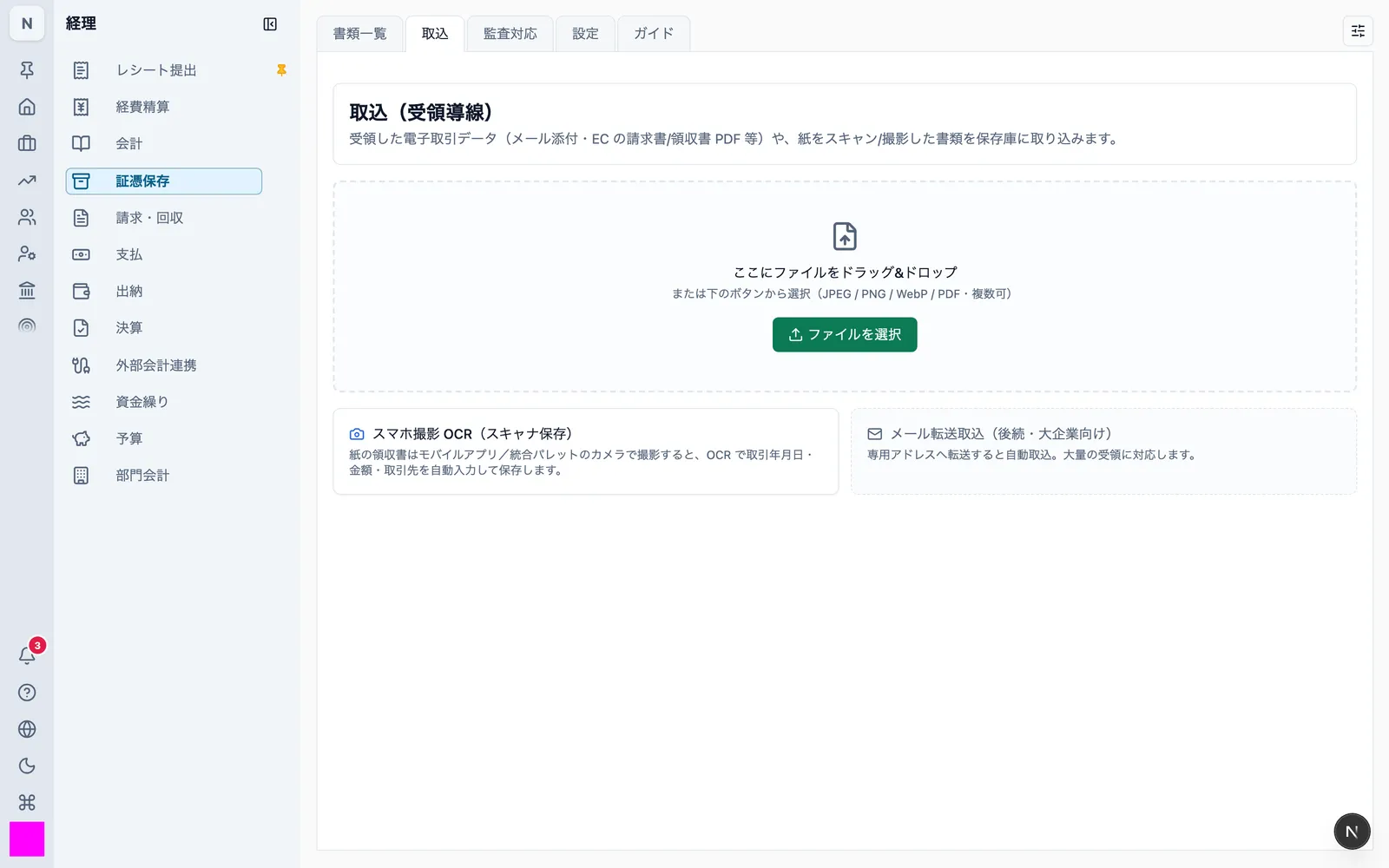
JPEG, PNG, WebP, and PDF are accepted.
Files appear in the "Document list" tab. The small image in the list is a preview to make the list readable — it is not the stored document. What is stored is the file as it was taken in (the original).
3.3 Recording the fields needed for search
For each document, record the transaction date, the amount, and the counterparty. These three are what search operates on.
Open a document from the list and fill them in on the "Basic info" tab.
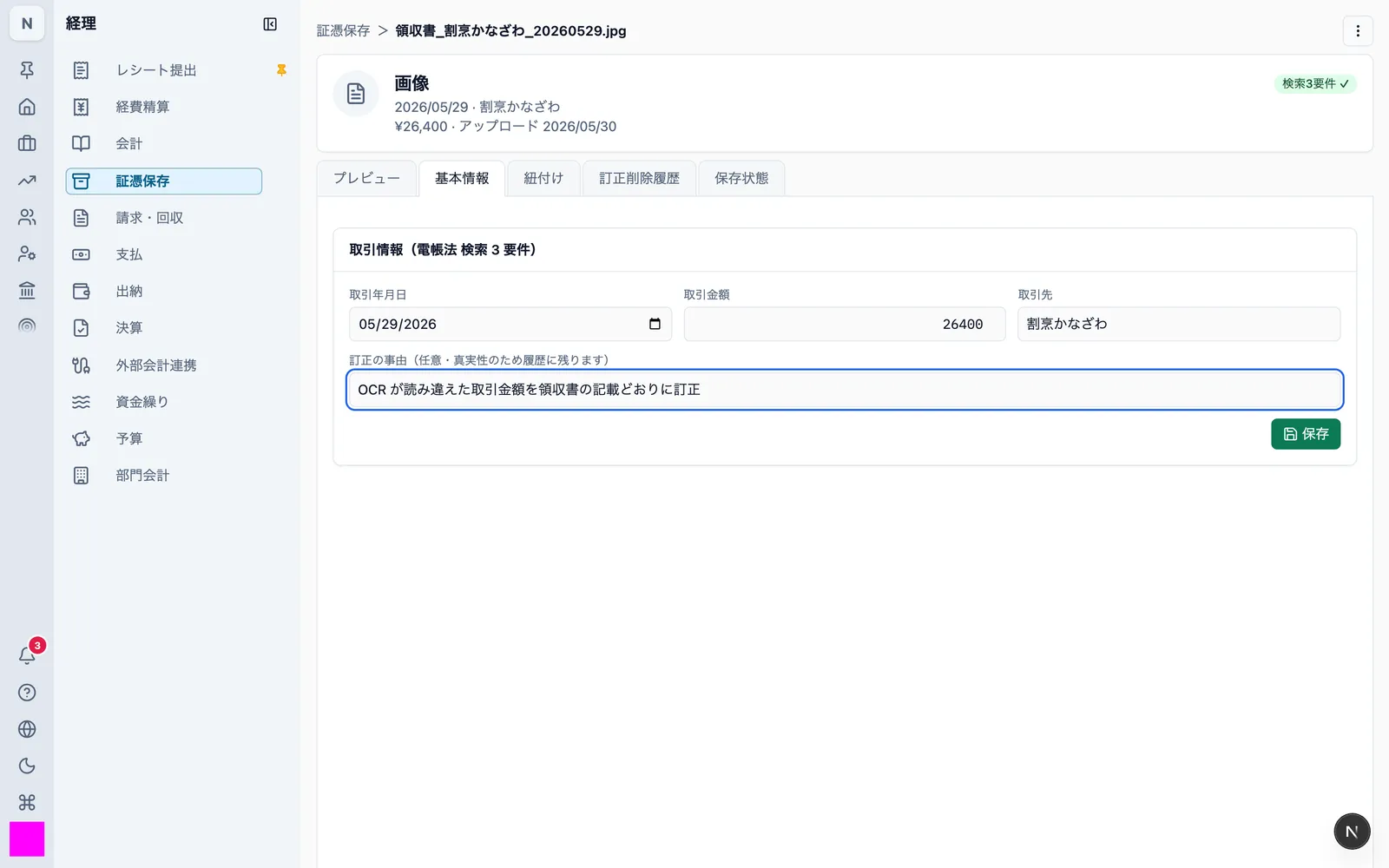
- For documents captured with a camera, character recognition (OCR) fills the three fields in. Check them and correct anything that is wrong before saving
- Documents missing any of the three are marked "Unfiled" in the list. The "Unfiled" status filter collects them
3.4 Correcting what was recorded
Change the value on the "Basic info" tab, write a reason for correction, and save.
Saving automatically records the value before, the value after, the reason, who did it, and when. The result is on the "Correction/deletion history" tab.
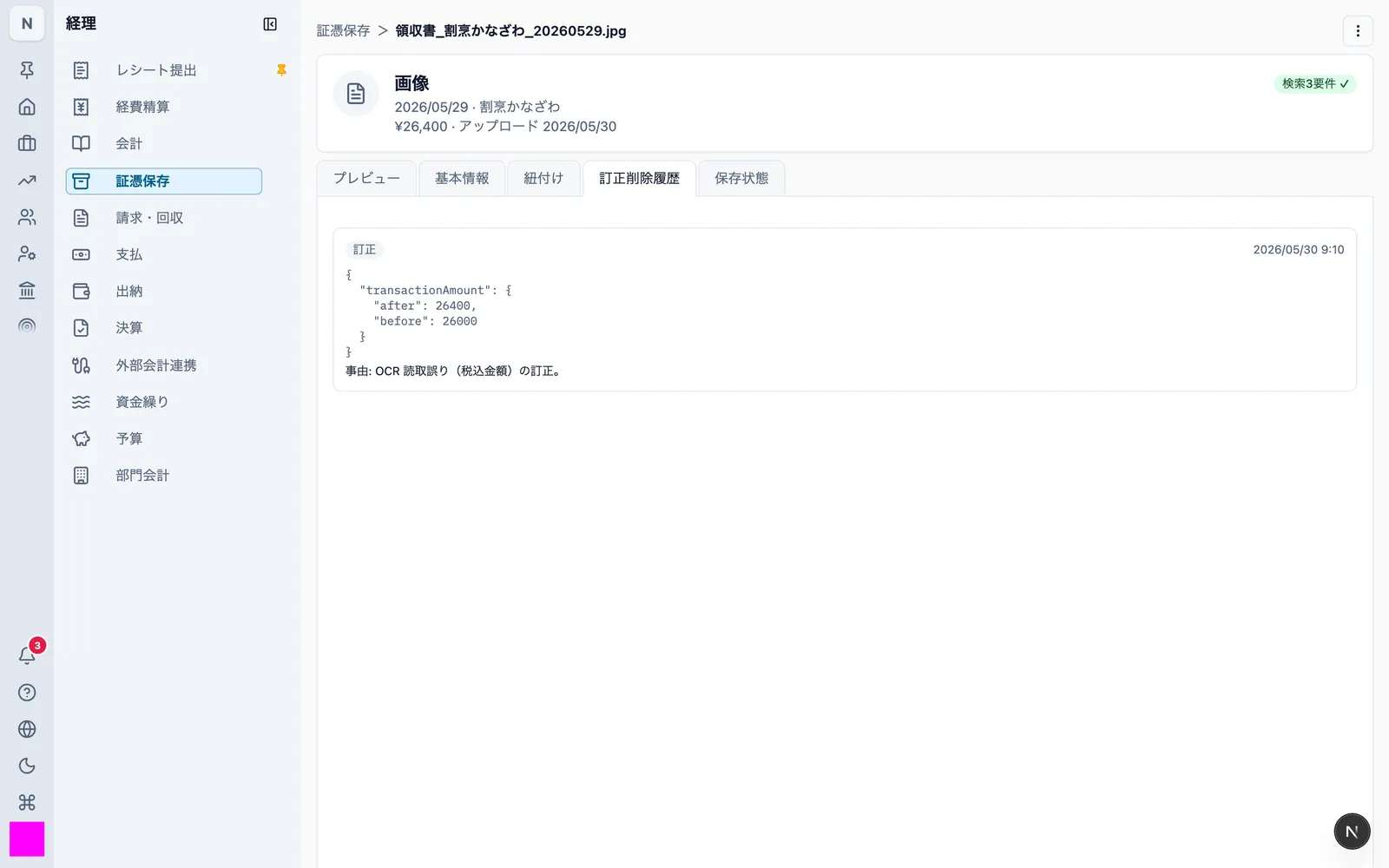
This history cannot be deleted. Device-to-device sync also rejects any update that would remove or alter it.
3.5 Deletion and restoration
Documents are only ever deleted logically. Deleting leaves both the record and the stored file in place. There is no path that physically removes them during the retention period.
- Delete from the document list or the detail screen
- The confirmation says that the deletion history is retained
- Deleting records the fact of the deletion in the history
To see deleted documents, choose the "Deleted" status in the search conditions of the document list. Their content is still viewable, and "Restore" brings them back. Restoration is recorded in the history too.
3.6 Searching documents
Use the funnel button on the document list ("e-Document Law search conditions"). All three forms accept the same conditions (Mobile opens them in a search sheet).
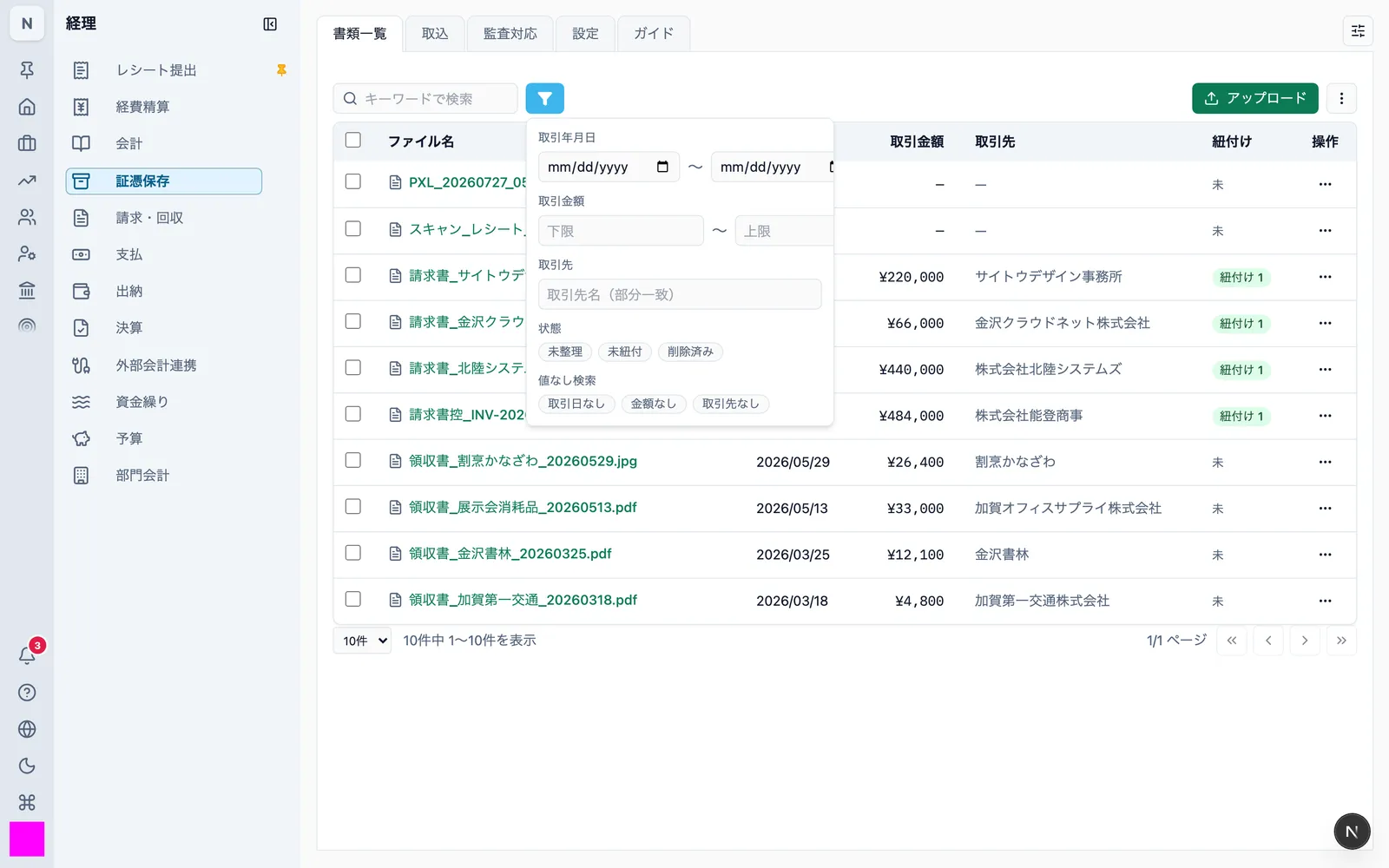
| Condition | How it is specified |
|---|---|
| Transaction date | A single value, or a range with a start and end date |
| Amount | A single value, or a range with a lower and upper bound |
| Counterparty | Partial match on the name |
| Status | Unfiled / unlinked / deleted |
| Missing values | No date / no amount / no counterparty |
- Two or more conditions can be combined (documents matching all of them are shown)
- A whole taxable period can be searched at once. Storage is never split by period
- "Missing values" explicitly pulls out documents where the field has not been filled in. Use it to find gaps in your records
3.7 Viewing and retrieving the original
Open the original on the "Preview" tab of a document, and retrieve it with "Download". Display and printing use names (counterparty name, file name) rather than codes.
- Display and retrieval go through a temporary URL with an expiry. Nothing is published at a permanent URL
- Opening an original requires an internet connection. When syncing with the cloud, only the preview image reaches the device; the original lives in the cloud
- When running standalone without the cloud, the original is on the device itself
3.8 Responding to a data download request
When a tax official asks for the electronic records, use the "Audit support" tab of the Evidence storage menu. You produce everything yourself, from the product.
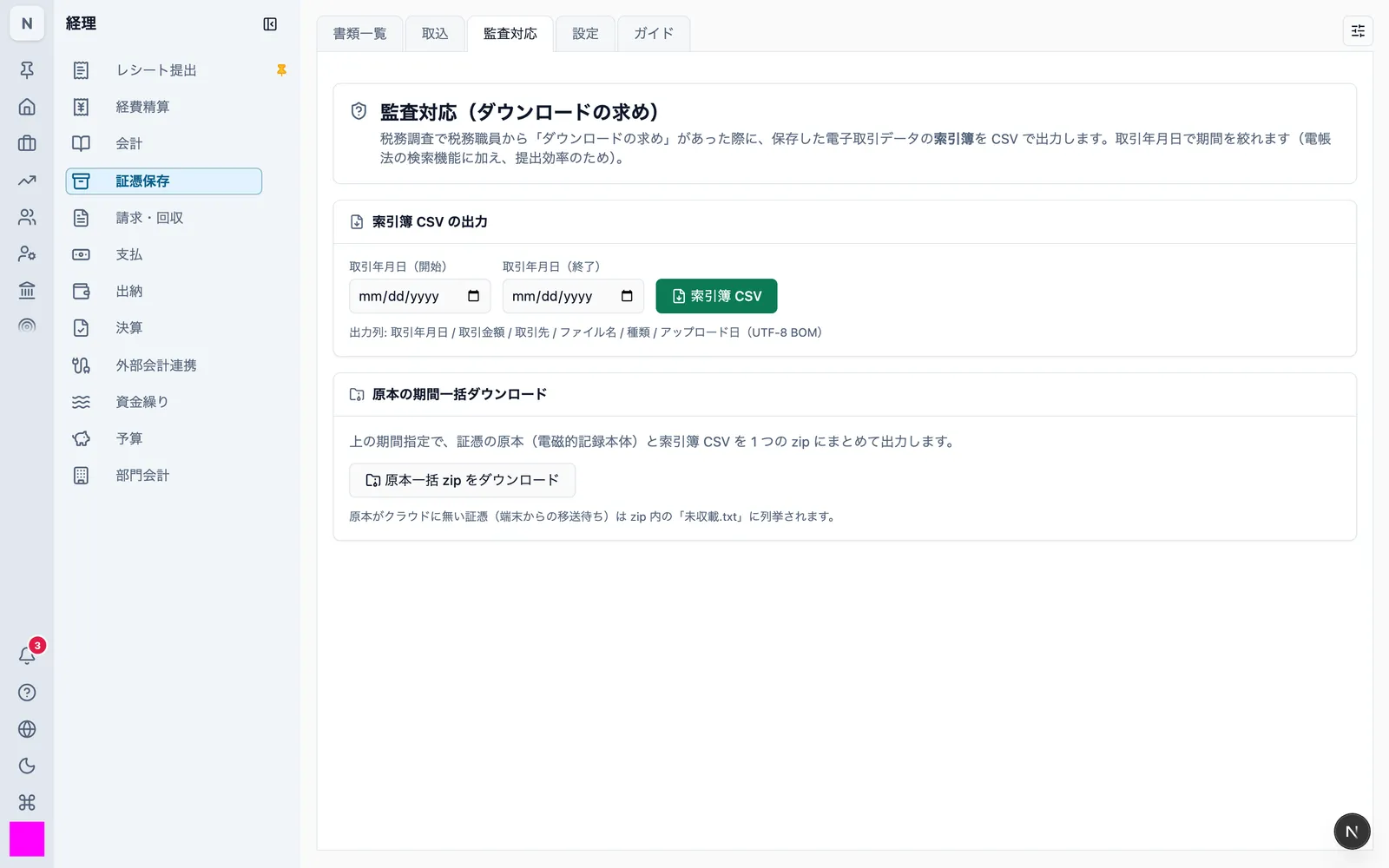
Index ledger CSV
Export a list of stored documents as CSV for a date range of transaction dates.
Columns: transaction date, amount, counterparty, file name, type, upload date (UTF-8 with BOM).
Bulk download of originals
For the same date range, the originals and the index CSV are packed into a single zip.
The zip contains the index CSV and an originals/ folder. If any original has not yet reached the cloud — a document just captured on a device, for instance — it is listed in 未収載.txt (not included).
On Mobile, use the "Index" tab to share the CSV and the zip.
Exporting the whole space
A full space export includes document originals — and past versions where a file was replaced — under files/evidence/.
3.9 Linking to books and business records
The Act requires important documents to be traceable to the books.
Use the "Linking" tab of a document to connect it to a payable, an invoice, and so on. The link can be made from either side.
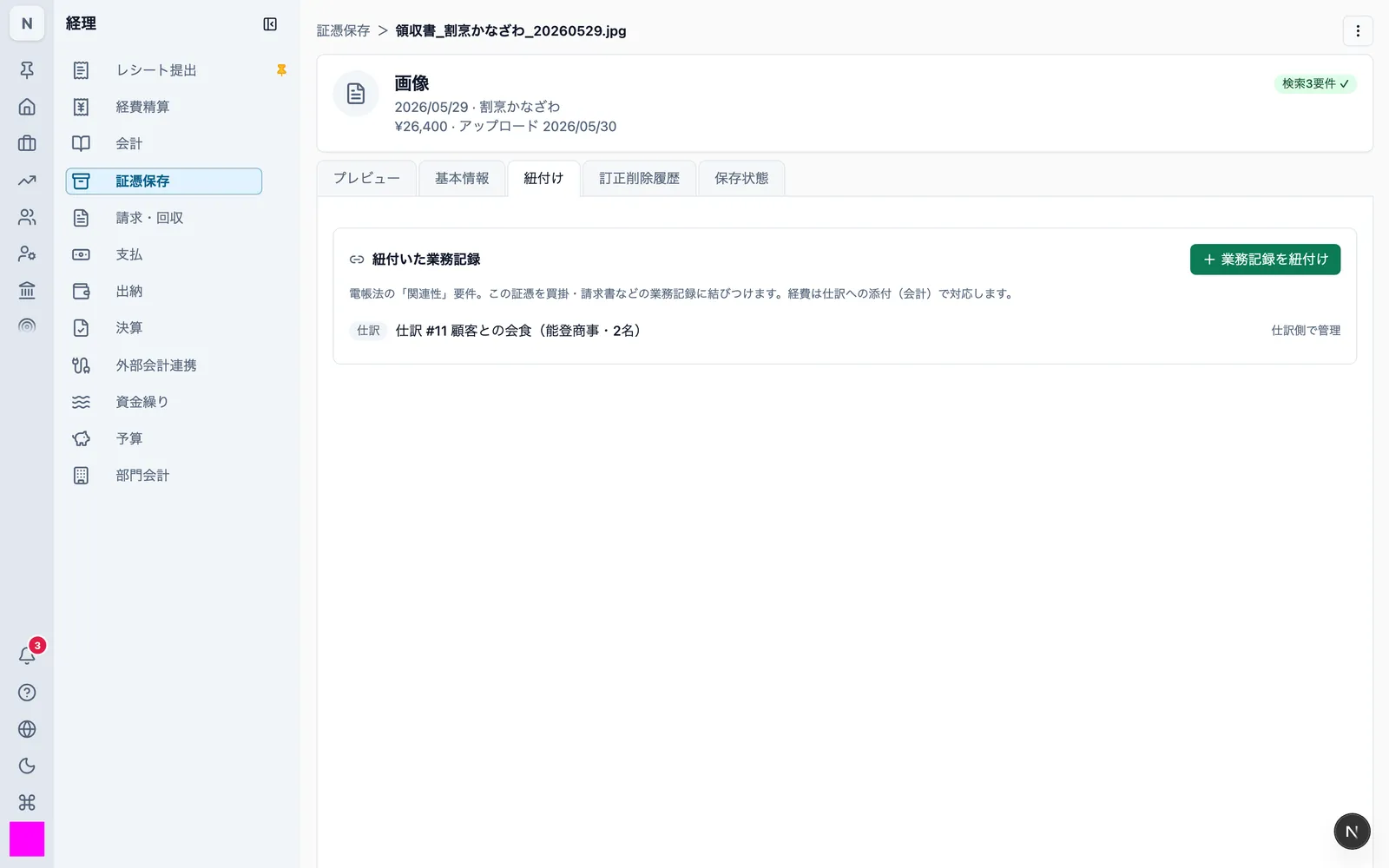
- Linking to a journal entry attaches the document to a draft entry (all three forms)
- Documents linked to nothing are collected by the "Unlinked" status filter
3.10 Checking the storage status
The "Storage status" tab of a document shows how it stands against the three requirements of the Act.
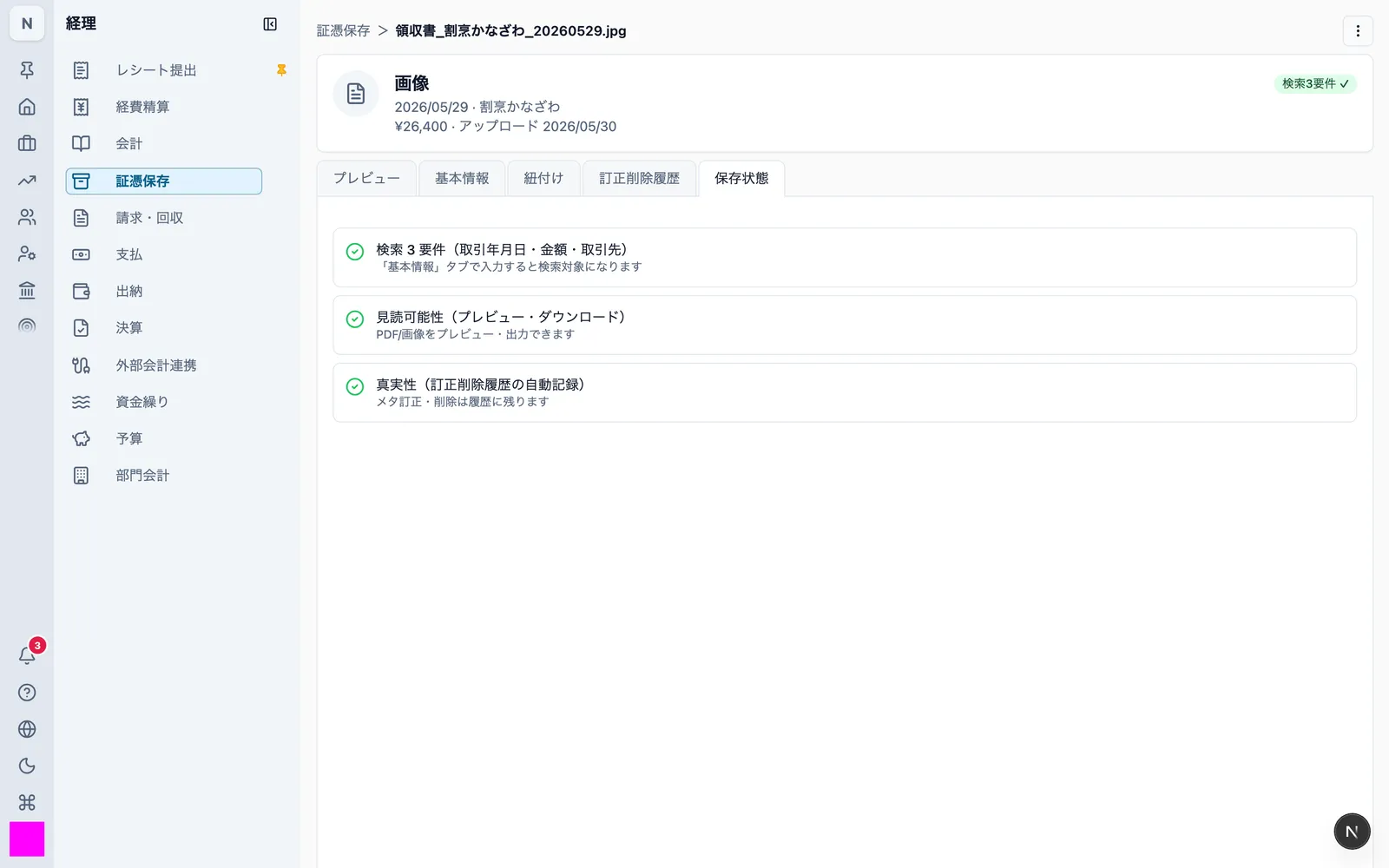
| Item | Meaning |
|---|---|
| Search requirements | Transaction date, amount, and counterparty are filled in and searchable |
| Authenticity | Corrections and deletions of the metadata are recorded automatically |
| Legibility | The original can be previewed and exported |
3.11 Retention period
Electronic transaction data must be kept for seven years as a rule, and ten years for a fiscal year in which a loss arises.
niyase does not cap the retention period, and nothing is physically removed by a user action within it (3.5).
3.12 Behaviour without an internet connection
The niyase apps (Desktop and Mobile) run on an on-device database, so the following work offline.
| Works offline | Does not work offline |
|---|---|
| Taking in documents (camera, file selection) | Viewing and downloading originals (when syncing with the cloud) |
| Browsing and searching the document list | Syncing with the cloud |
| Entering and correcting the recorded fields (history included) | |
| Exporting the index CSV | |
| Producing the internal-rules templates |
When syncing with the cloud, a document captured on a device has its original only on that device at first. The original is sent to the cloud once the connection returns. Until then it appears in 未収載.txt inside the bulk zip (3.8).