

Scanner storage (digitising paper documents)
Capturing paper receipts and invoices with a camera or scanner and storing them — recommended capture specifications, the automatic check on intake, replacing a file with a new version, pulling out deleted documents, and linking to the books.
This page covers turning paper receipts and invoices into images and storing them. See the overview for what is common to all categories.
Searching, correcting, and exporting a stored document works exactly as described in Storing electronic transaction data. This page covers only what is specific to digitising paper.
4.1 Scope and method
Documents in scope
National-tax documents received on paper. Important documents (contracts, receipts, invoices, delivery notes) and general documents (quotations, purchase orders) are subject to slightly different requirements.
Handling of corrections and deletions
niyase uses the method that records a history of corrections and deletions. The history remains and cannot itself be removed (3.4, 4.9).
Assurance of the storage time
The storage time (upload timestamp) is set on the server side and cannot be changed by a user, including through a correction. It is shown on the detail screen and included in the index CSV.
4.2 The entry deadline and the document to keep on file
Scanner storage has a deadline for entry. Choose one of two methods.
| Method | Deadline | Document to keep on file |
|---|---|---|
| Prompt entry | Roughly seven business days after receipt | None |
| Business-cycle method | The business cycle (up to one month) plus roughly seven business days | A document describing the entry procedure is required |
The template for the business-cycle method is at Evidence storage → Settings → Scanner storage settings → "Download template".
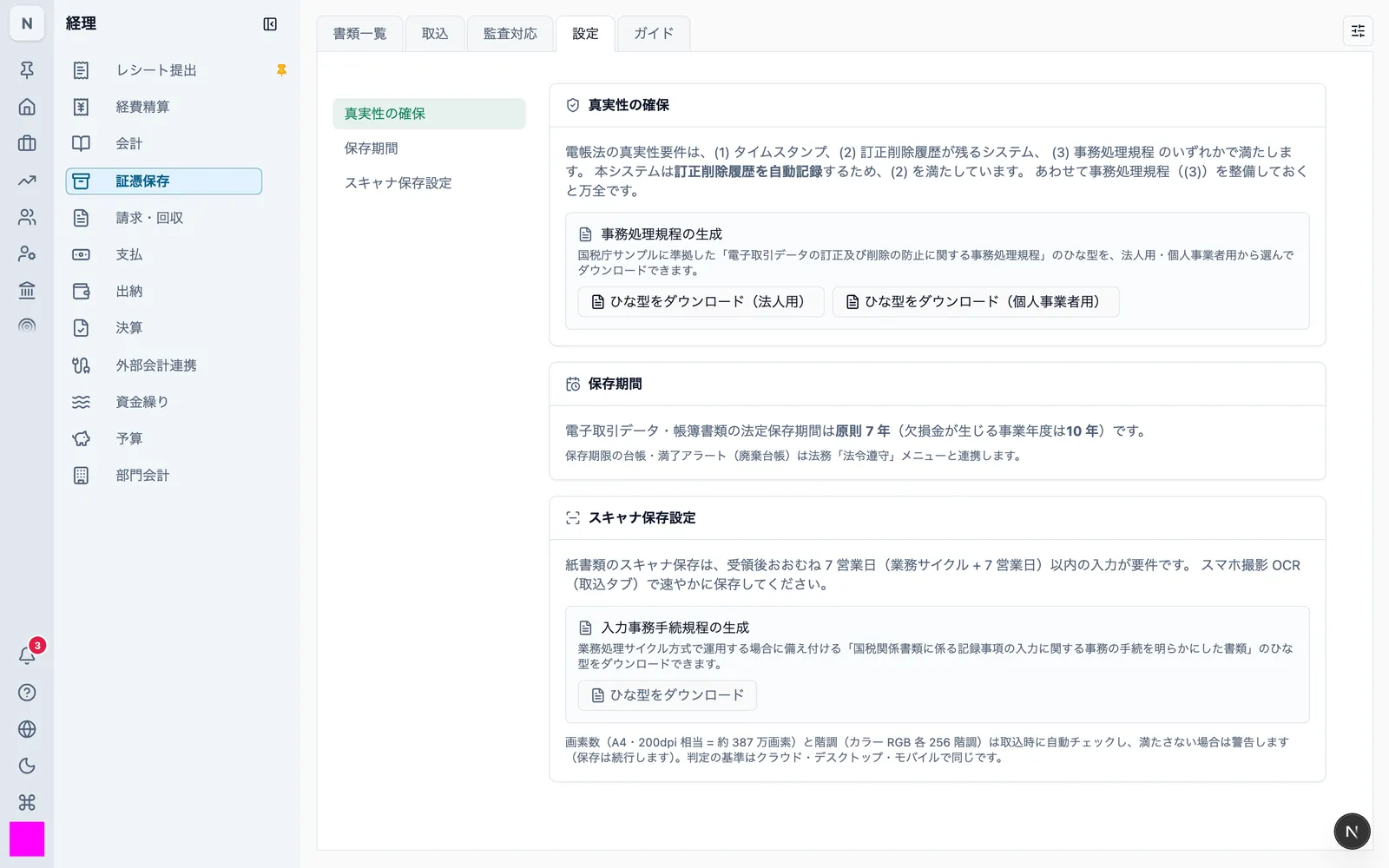
Meeting the deadline is a matter of operation. Capturing with the camera on Mobile lets you store a document on the spot.
4.3 Digitising a paper document
| Form | How |
|---|---|
| Mobile | Accounting → Evidence storage → "+" → "Receipt" → capture with the camera |
| niyase Cloud / Desktop | Accounting → Evidence storage → Intake → drag and drop the scanned image or PDF, or use "Select file" |
Once captured, character recognition (OCR) reads the transaction date, amount, and counterparty and fills them in.
Mobile can capture and store offline. When syncing with the cloud, the original is sent up once the connection returns.
4.4 Recommended scanner and camera specifications
Use a capture device that meets the following.
| Item | Requirement |
|---|---|
| Resolution | 200 dpi equivalent or higher (about 3.87 megapixels for A4) |
| Gradation | 256 levels each for red, green, and blue (24-bit colour) or higher |
| Output format | JPEG / PNG / WebP / PDF |
- Capture important documents in colour. Greyscale and bitonal do not meet the requirement
- General documents may be stored in greyscale
- When capturing with the camera on Mobile, use a camera that meets the pixel count above. No cropping is applied after capture
Display and printer requirements are in 1.4.
4.5 The automatic check on intake
Captured images are checked against 4.4 before they are stored.
| What is checked | If it is not met |
|---|---|
| Pixel count (3.87 megapixels ≈ A4 at 200 dpi) | A warning is shown; storage continues |
| Colour channels and bit depth (256 levels per RGB channel) | A warning is shown; storage continues |
If you see a warning, re-capture the document when it is an important document. General documents may be stored in greyscale, so a warning does not necessarily mean the capture is unusable.
The same criteria are applied in all three forms.
The measured resolution (dpi) and gradation themselves are not stored. What is stored is the image's pixel dimensions and file size (4.7).
4.6 Checking and correcting the recognised fields
Check the transaction date, amount, and counterparty that OCR filled in, and correct anything wrong. The procedure is the same as 3.3.
A correction to an OCR value is recorded in the history as a correction, even immediately after intake (3.4). No history entry is created when nothing actually changed.
4.7 Size and operator information
The following are recorded automatically on intake. No user input is involved.
| Recorded | Content |
|---|---|
| Size of the original | Image width and height in pixels, and the file size |
| Operator | The user who performed the intake |
The same information is recorded for each version when a file is replaced.
4.8 Re-capturing and replacing the file
If the capture quality was insufficient, the original can be replaced without creating a new document. The earlier version is not lost.
niyase Cloud / Desktop: document detail → Preview tab → "File versions" → enter a reason and press "Replace file".

- Replacing adds a new version; earlier versions are never overwritten or deleted
- Any version can be opened from the list
- The replacement and its reason are recorded in the history
Replacing a file is not available on Mobile. Use niyase Cloud or Desktop.
4.9 Corrections, deletion, restoration, and pulling out deleted documents
The procedures are the same as 3.4 and 3.5. The points that matter specifically for scanner storage:
- There is no path that physically removes anything. Deletion is logical only; both the record and the stored file remain
- Deleted documents are pulled out by selecting the "Deleted" status in the document list's search conditions
- Their content is still viewable, and they can be restored
- The correction history keeps the value before and after for each field, and cannot be deleted
4.10 Searching, listing, and printing
Searching works as in 3.6: the three fields, ranges, combinations, and missing-value search.
- Results are shown as a list
- The list and the preview of an original can be printed from the screen
- Originals can be displayed at actual size, enlarged, or reduced
4.11 Linking to the books
Important documents must be traceable to the books. Use the "Linking" tab of a document (3.9).
- Journal entries, payables, expenses, and invoices can all be linked
- Documents with no relationship to the books are pulled out by the "Unlinked" filter
4.12 Responding to a data download request
The same as 3.8: the index CSV and the zip of originals for a date range.
4.13 Migrating to and from other systems
See 1.9. Originals are handed over as the files that were taken in, including past versions where a file was replaced.