

Electronic books (creating and storing books)
Entering journal entries, posting and voiding them, reviewing delayed entries, searching, displaying and printing books, and exporting all journal entries as CSV — the procedures for Art. 4(1) and reliable electronic books under Art. 8(4).
This page covers storing the journal and general ledger produced in the Accounting menu as electronic data. See the overview for what is common to all categories.
2.1 Scope and prerequisites
Books in scope
The journal and the general ledger produced by the Accounting menu. Subsidiary ledgers are derived from journal entries for display.
What you must do yourself
The following are not features of the software; they depend on how you operate. If they are not true, the storage requirements are not met.
- Record every transaction in niyase. If some transactions are kept in another set of books, the books in niyase do not satisfy the requirement on their own
- Create the books electronically from the start. Handwritten books captured as images later do not fall into this category. niyase stores journal entries as text at the line level, never as an image
- Provide the equipment described in 1.4
- To claim the reliable-electronic-books relief (a reduced understatement penalty), you must file a notification with your district tax office in advance. No setting in the software completes this
2.2 Entering a journal entry
Use the "Journal entries" tab of the Accounting menu. A new entry starts as a draft.
niyase Cloud / Desktop: Accounting → Accounting → Journal entries → "Add transaction"
Mobile: Accounting → Accounting → Journal entries → "+"
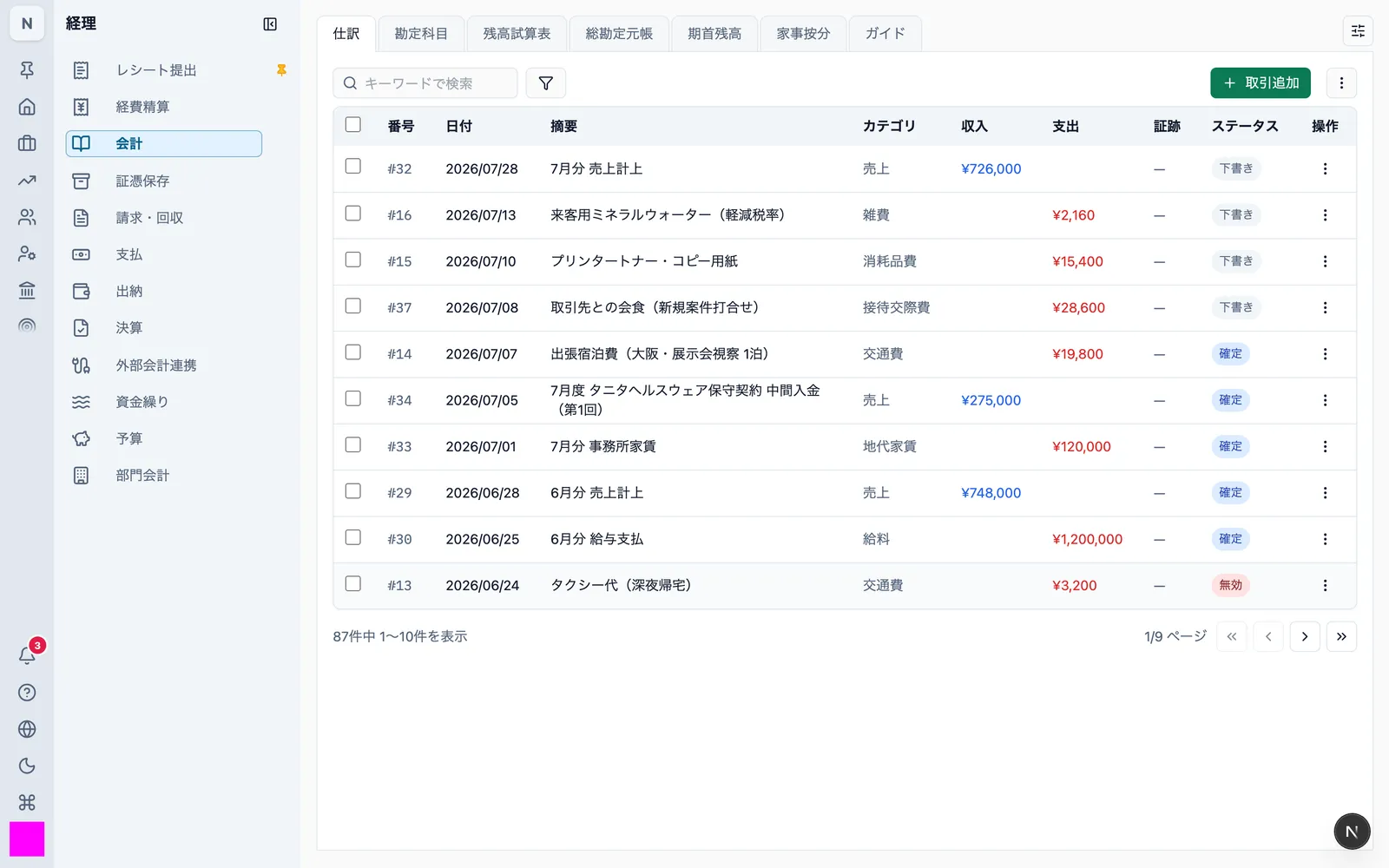
| Field | Content |
|---|---|
| Date | Transaction date |
| Description | What the transaction was |
| Category | Account |
| Type and amount | Income or expense, and the amount |
| Counterparty | The other party (optional) |
| Consumption tax type | Standard 10% / reduced 8% / out of scope or exempt / non-taxable (optional) |
| Invoice number | T followed by 13 digits (optional) |
| Transitional deduction | Notes that the 80% / 50% transitional input-tax deduction applies to a purchase from a non-registered supplier (optional) |
| Books-only special case | Notes that the purchase qualifies for input-tax deduction with books-only retention (9 statutory categories such as public transport and employee travel, optional). When selected, the supplier's address can also be recorded |
| Evidence | Attached document (changeable only while the entry is a draft) |
The date and time of entry are recorded automatically and cannot be changed by a user. They are held separately from the transaction date and can be inspected through 2.6 and in the CSV of all journal entries.
2.3 Posting an entry
Posting a draft moves it to posted. Choose "Confirm posting" from the row's action menu.
An entry can only be posted once a document is attached to it. There are two ways to attach one; either is fine.
| How | Where | Available in |
|---|---|---|
| From the entry | Row action menu → "Upload evidence" or "Select existing evidence" | niyase Cloud / Desktop |
| From the document | Evidence storage → open the document → pick a draft entry | All three forms |
A posted entry cannot be edited. Date, amount, account, and description all become read-only, and the entry can no longer be deleted. Attaching or replacing a document is only possible while it is a draft.
This restriction cannot be lifted from niyase Cloud, Desktop, or Mobile, nor through device-to-device sync. The same check runs when data is pushed to the cloud, and updates that would edit a posted entry are rejected.
2.4 Correcting a posted entry
When a posted entry turns out to be wrong, use the correction operation. It voids the original entry with a reason and creates a draft correcting entry with copied lines, all in a single step.
- Choose "Create correcting entry" from the row's action menu
- Enter a reason for the correction (required)
- The original entry moves to the voided state, and a correcting entry is created as a draft with the lines and evidence link carried over. The link to the original entry is added automatically
- Fix the correcting entry's content and post it
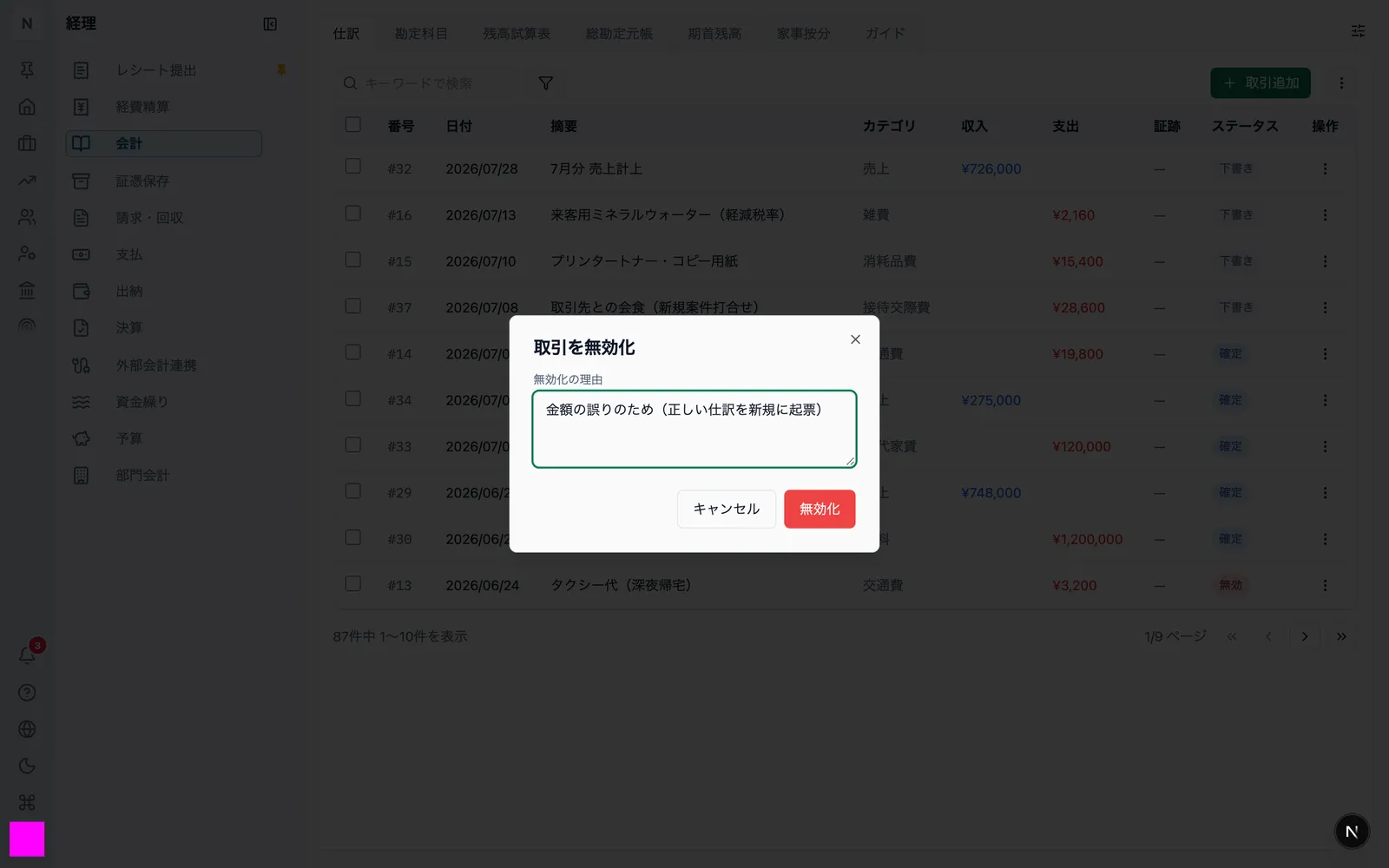
The list shows "corrects #N" on the correcting entry and "corrected by #N" on the voided original, and the all-entries CSV includes a "correction source entry number" column — so which entry corrected which can be established from both the screen and the export.
To void an entry without creating a correcting entry, use "Void" (reason required) from the action menu and enter the corrected content as a new entry yourself.
A voided entry cannot be deleted. It stays in the books as the record of the correction and continues to appear in the list. Because both the original and the corrected entry remain, the fact of the correction and its content can both be established afterwards.
2.5 What can be deleted
Only draft entries can be deleted. Posted and voided entries cannot.
A deleted draft is data that was never posted to the books, so nothing is lost from the books themselves.
2.6 Reviewing entries made after the processing period
You can filter for entries recorded some time after the transaction took place.
Open "Advanced search settings" (the funnel button) and select the "Delayed-entry review (reliable e-books)" chip. By default it selects entries recorded more than 60 days after the transaction date.
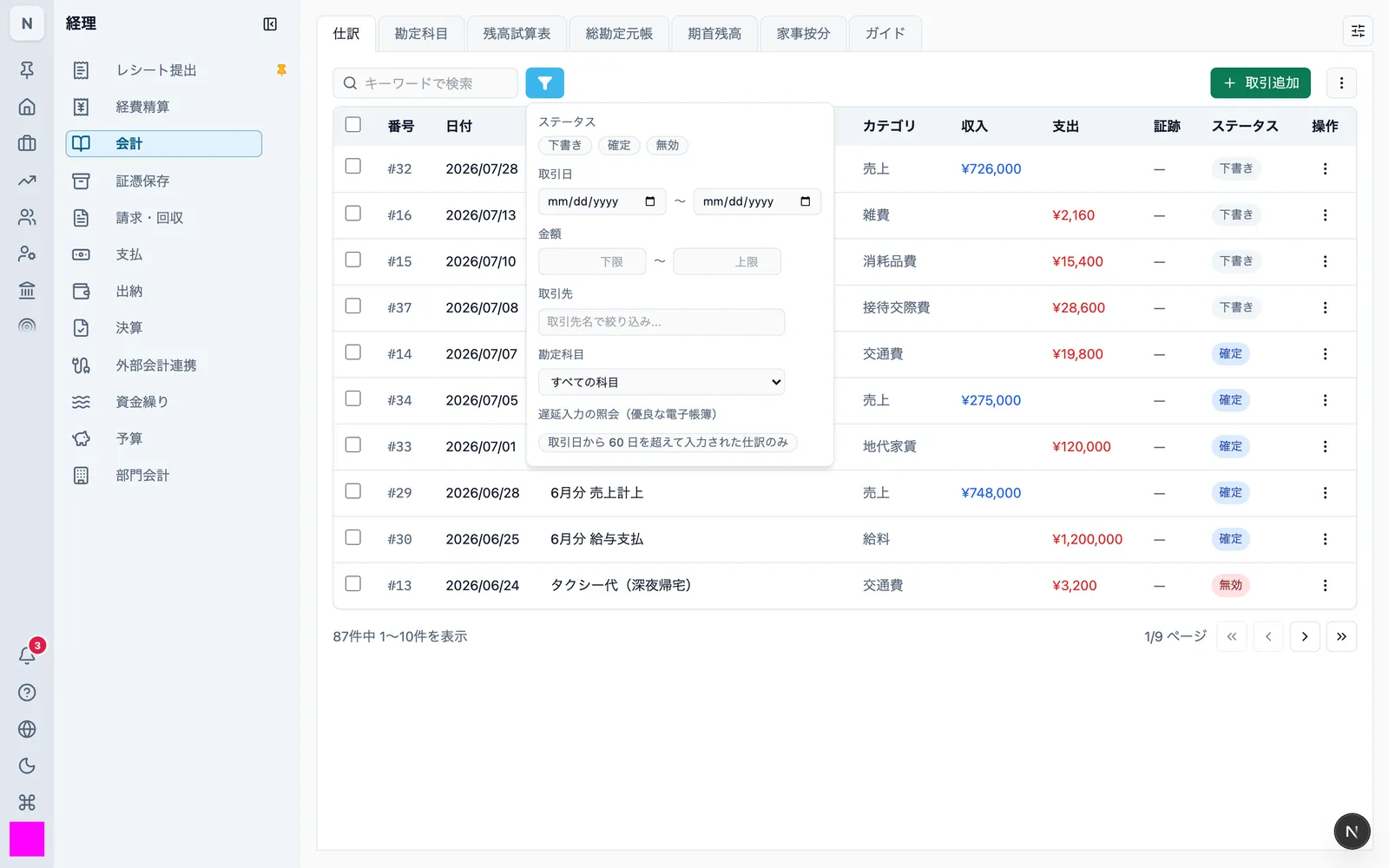
The CSV of all journal entries has an entry-date column, so the gap between transaction date and entry date can also be checked there.
2.7 Searching journal entries
The same panel offers the conditions below. All three forms accept the same conditions (on Mobile, open "Advanced search").
| Condition | How it is specified |
|---|---|
| Transaction date | A range with a start and end date |
| Amount | A range with a lower and upper bound |
| Counterparty | Partial match on the name |
| Account | Selected from the chart of accounts |
| Status | Draft / posted / voided |
| Delayed entry | See 2.6 |
- Two or more conditions can be combined (entries matching all of them are shown)
- A whole taxable period can be searched at once. Storage is never split by period
- Active conditions are summarised next to the funnel button and can be cleared with "Clear all"
The keyword box is a simple search over descriptions and can be used alongside the conditions above.
2.8 Displaying and printing books
| Book | Where |
|---|---|
| Journal | Accounting → Journal entries |
| General ledger | Accounting → General ledger |
| Trial balance | Accounting → Trial balance |
For the general ledger, choose a fiscal year and an account, then press "Show".
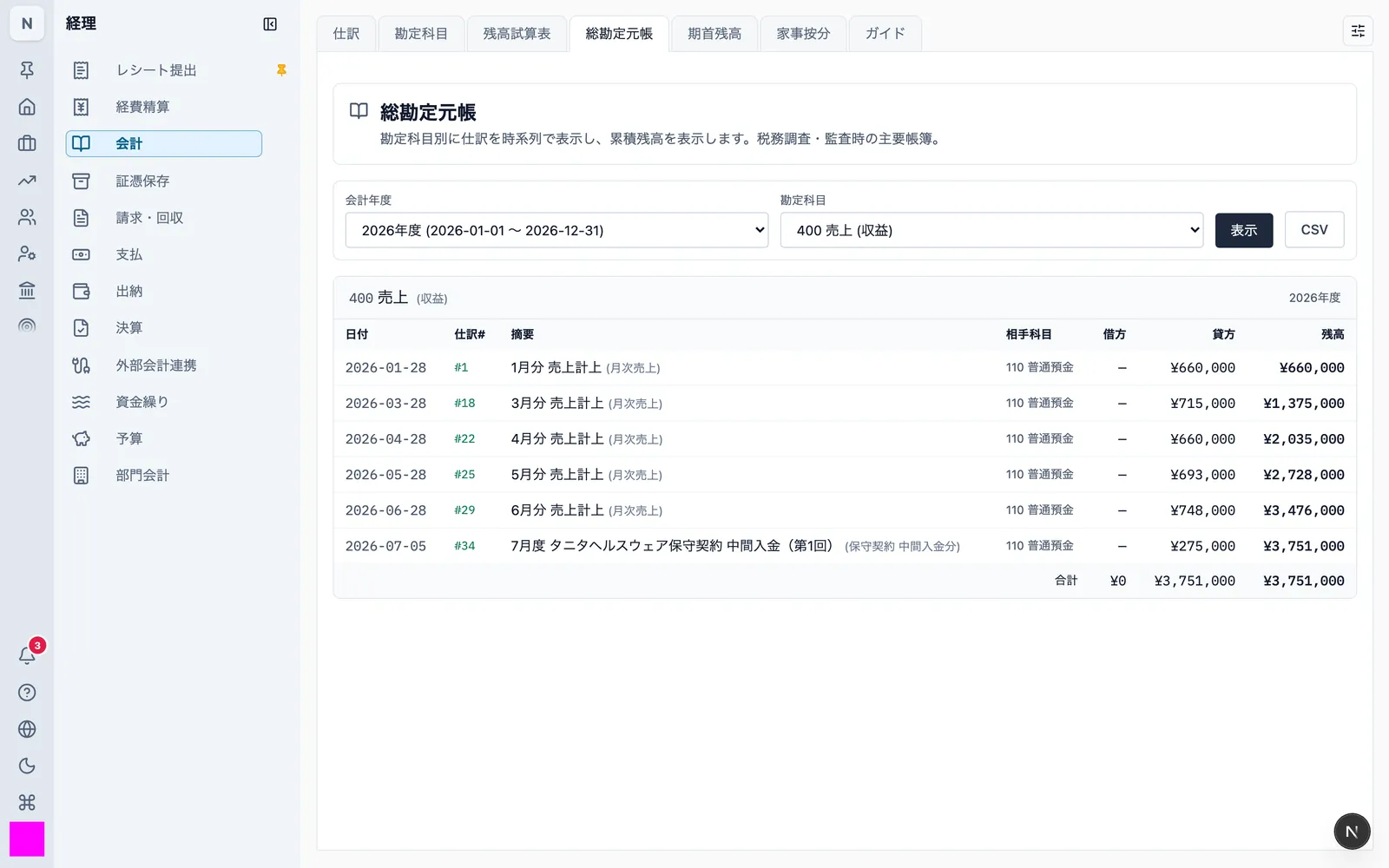
Printing uses the browser's or the app's print function. What is on screen is what goes to paper, in the same orderly format.
2.9 Relationships between books
- The general ledger is assembled from journal entries. Correcting an entry changes the ledger; nothing is stored twice
- Each ledger line shows the entry number (such as
#12), which is unique within the fiscal year - The entry number links back to that entry in the journal
- The ledger has a contra account column, so the other side of each transaction is visible on the same line
2.10 Responding to a data download request
When a tax official asks for the electronic records, use the exports below. You produce all of them yourself, from the product.
| Export | Where | Content |
|---|---|---|
| All journal entries as CSV | Journal entries → action menu → "Download all journal entries as CSV (all periods)" | Every entry for every period, including the entry-date, correction-source entry number, and consumption-tax detail (transitional deduction / books-only special case / supplier address) columns |
| Filtered results as CSV | Same menu → "Export CSV (filtered results)" | The entries matching the current search conditions |
| General ledger as CSV | General ledger → "CSV" | The displayed account and year, with running balance |
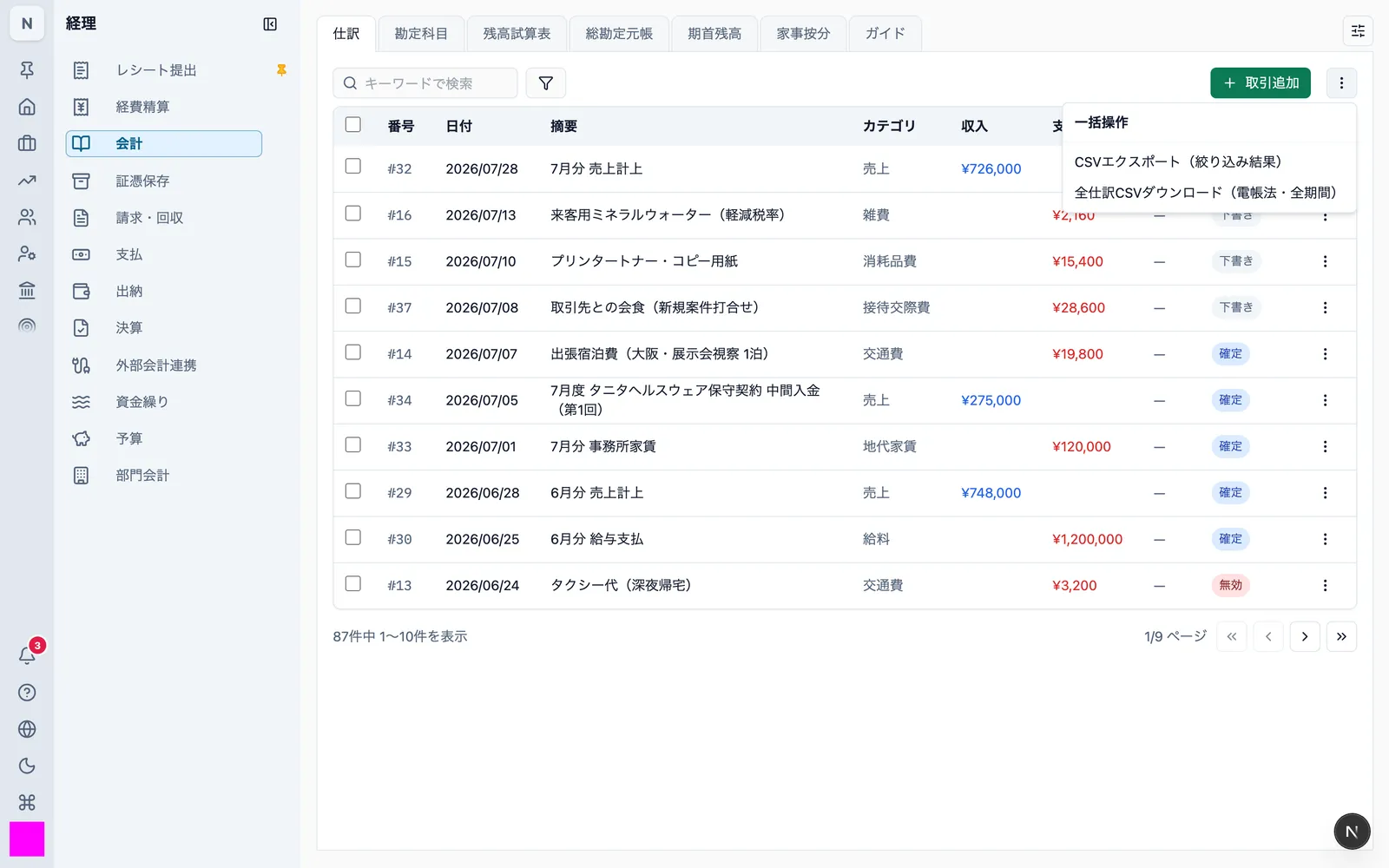
On Mobile, use "Share CSV" and choose either all entries or the filtered results.
2.11 When an account is renamed
Renaming an account does not change how past books are displayed.
When an entry is saved, the account's code and name at that moment are copied onto the entry line. Because a posted entry cannot be edited, the copied values stay fixed. Counterparty names are copied in the same way.
The journal CSV, the contra-account column of the ledger, and the account names in the trial balance all prefer these copied values.
2.12 Keeping system documentation on file
This category is the operating manual. See 1.10 for what else to keep on file.